FLOW
Give the photograph a current.
Keep a readable focal detail inside a broader movement. Preview the composition, place its protected area and choose a direction before adding local gestures.
From curiosity to a finished work
Begin with a current starting-point example: compare source and result, adjust the focal region or crops, and decide what to keep. The individual technique reference isolates one control; a workshop carries the decisions through to a finished piece.
Silent recordings of the real playground, made with the sample photos. Every step is labeled with the control's name. More clips sit beside each guide and in the Chinese walkthrough.
Video unavailable. You can still read the written instructions on this page.
Video unavailable. You can still read the written instructions on this page.
Video unavailable. You can still read the written instructions on this page.
Video unavailable. You can still read the written instructions on this page.
Video unavailable. You can still read the written instructions on this page.
Video unavailable. You can still read the written instructions on this page.
Video unavailable. You can still read the written instructions on this page.
FLOW
Keep a readable focal detail inside a broader movement. Preview the composition, place its protected area and choose a direction before adding local gestures.
TRACE
Guide the focal detail and simplify competing texture into broader ink shapes. Compare the result as a print before choosing extra layers or a finish.
DUEL
Choose a pair with a visual connection. Crosscut supplies a shared diagonal and focal height; you decide the crops, the balance and what each image contributes.
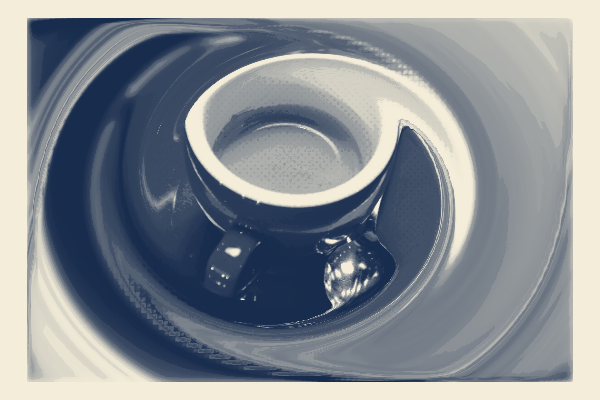
FLOW · 12–20 minutes
Make a recognizable subject feel surrounded by movement. Learn to protect what matters, sculpt the space around it and keep an editable version.
Follow this workshop →Take away: A composed PNG and an editable project backup with the source, focal treatment and local edits.
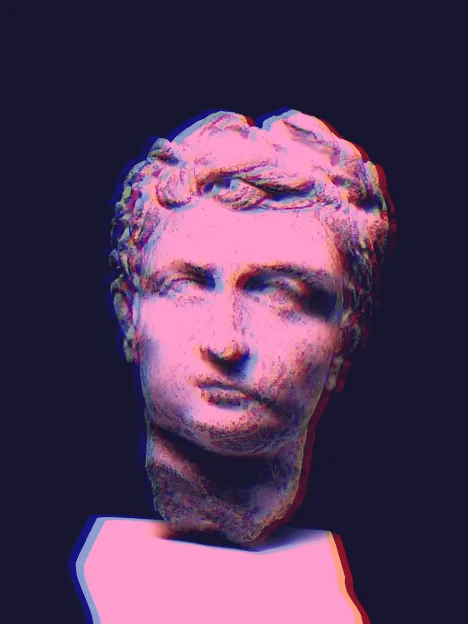
FLOW · 15–25 minutes
Develop a strong still into a short motion study, with a deliberate start, a readable focal point and a recoverable source project.
Follow this workshop →Take away: A cover PNG, a short GIF or replay video, and the editable project.
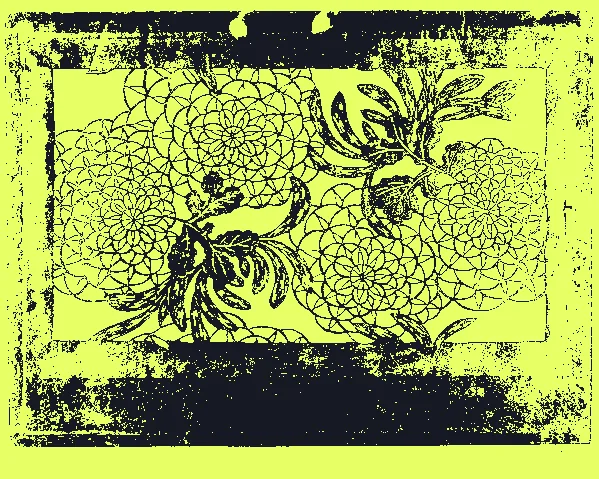
TRACE · 12–20 minutes
Develop a readable focal area, then reduce the image to two purposeful inks. Deliver editable paths alongside the finished raster.
Follow this workshop →Take away: A composite PNG, a two-plate SVG and an editable project backup.
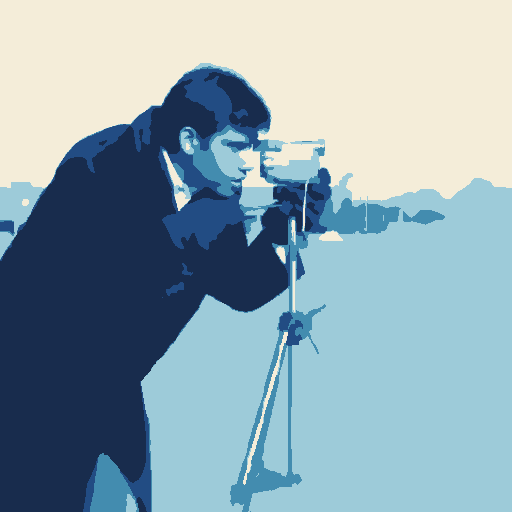
TRACE · 15–25 minutes
Build a richer separation, move selected impressions and keep a clean version beside the expressive one.
Follow this workshop →Take away: A clean PNG, an offset PNG, a layered SVG and a project containing the versions.
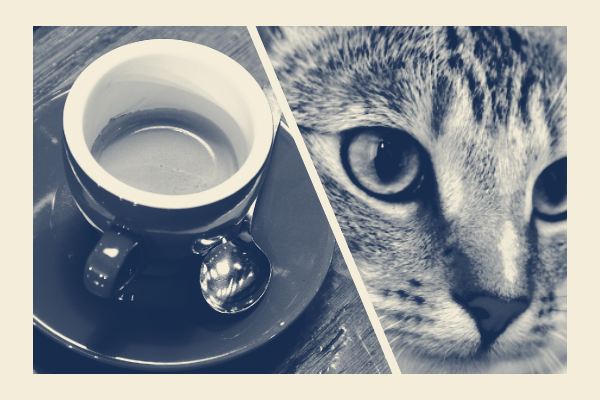
DUEL · 15–25 minutes
Give each image a clear role, connect their focal forms and refine where they meet. Compare a composed cut with a tonal overlay.
Follow this workshop →Take away: A composed collage PNG, an optional short motion file and a project preserving both sources and their framing.
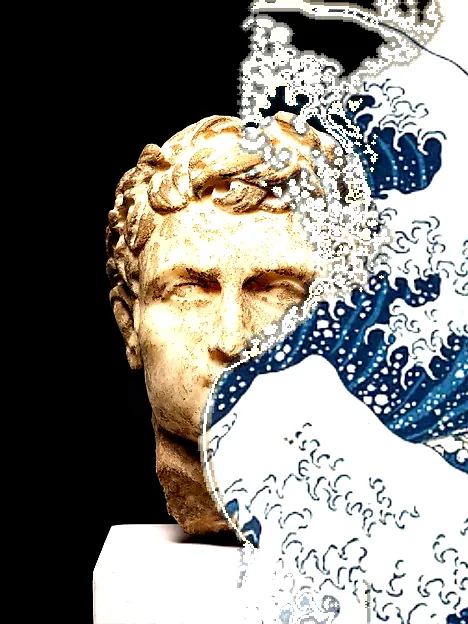
DUEL · 20–30 minutes
Use DUEL to invent a photographic relationship, then send the visible result to TRACE and develop it into an editable ink separation.
Follow this workshop →Take away: A collage PNG, TRACE print PNG and editable SVG, plus one project retaining both stages and original source images.
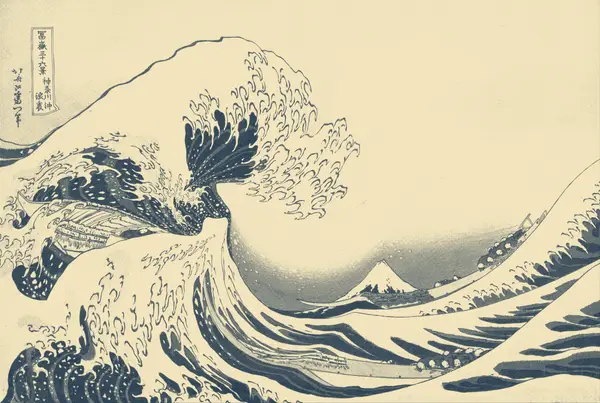
FLOW / Finished series
An image family for an imaginary listening series: a sculpted lead image, a second gesture, and a graphic print from the same current.
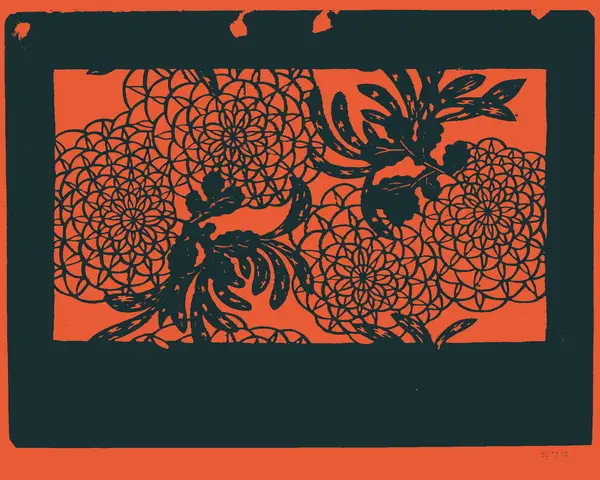
TRACE / Finished series
A compact print system for an imaginary botanical exhibition: one source, three ways of laying down ink, and a consistent palette.
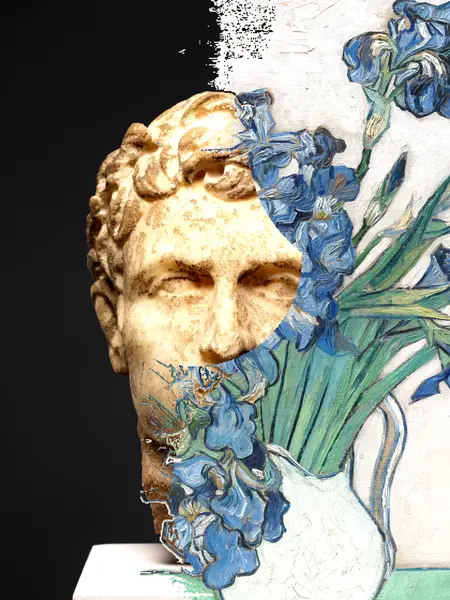
DUEL / Finished series
An image family for an imaginary art programme: a sculpture photograph and Van Gogh’s Irises meet in a collage cover, a softer companion and an ink poster.
Use the core playground to establish a subject, structure or relationship. Then compare finishing passes on the same image and choose their order.
The Compose reference →Keep a version in History before taking a different direction. Replay selects an earlier moment as Now; preserve the later version first if you want to return to it. A downloaded project keeps your editable work outside this browser.
Versions, replay and recovery (Chinese) →Export → Send to passes the visible result into another mode. History retains the earlier editable stage and its sources. Choose Edit, revise it, then Rebuild finish to carry the saved later settings onto the new result. Download a project backup to preserve the whole process.
Make a collage, then an ink poster →PNG keeps the composite. GIF and video keep motion. SVG keeps TRACE paths and plate inks. A project keeps sources and editable decisions. Check the downloaded file before delivery.
Formats, limits and practical checks →The Chinese step-by-step guide retains the exact English button names. The English guides explain each creative workflow. If a source, export or saved project fails, the support page gives the recovery route.