A practical guide · DUEL
Let two photographs compete
DUEL combines two photos through a moving boundary. Most of the image belongs to one source or the other, with a narrow contested region at the contact line. The result can resemble erosion, invasion or an irregular collage, depending on your sources and the competition rule.
Open DUELCore tools work without an account. Image effects run in your browser.
Watch it in the studio
Silent recordings of the real playground with the sample photo. Each step is labeled with the control's name, so you can follow along in another tab.
Video unavailable. You can still read the written instructions on this page.
Steps in this clip
- Add photo B
- Change the rule: what wins?
- Edges, brightness or chaos
- Balance favors one photo
- Spread lets the fight travel
Video unavailable. You can still read the written instructions on this page.
Steps in this clip
- Open Edit
- Brush for photo A
- Paint A into B’s side
- Then give B its territory
DUEL / Start with a composition
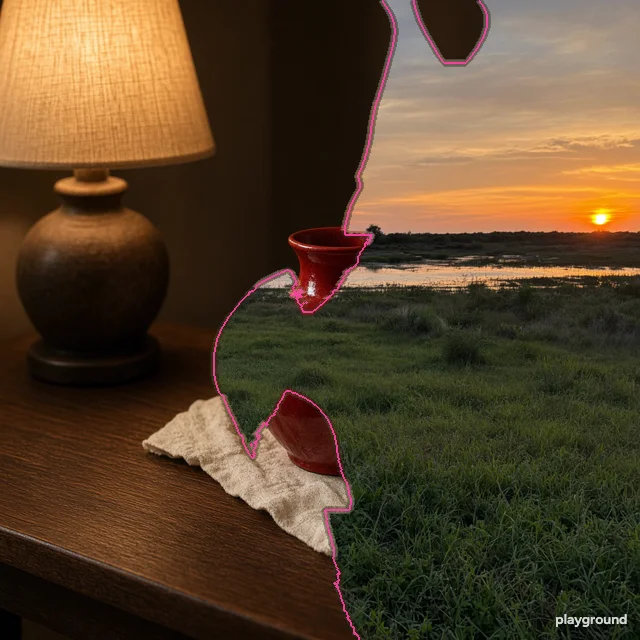
Cup meets gaze.
The cup’s round rim and the cat’s gaze create the relationship. Crosscut supplies a common diagonal and focal height; independent crops decide what each half contributes. Shared tones connect the two photographs.
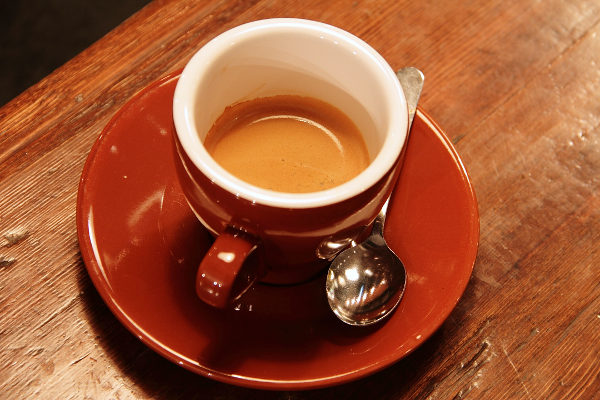
Rachel Michetti · CC0 / public domain ↗
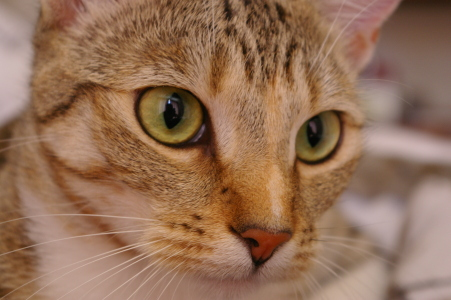
Stefan van der Walt · CC0 / public domain ↗
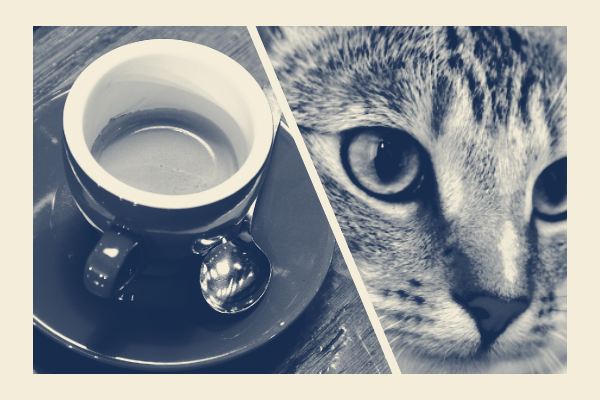
Download PNG ↓
Make a decision. Both the cup and the face should read at thumbnail size. Move or zoom A and B independently if one subject is clipped. An automatic crop cannot choose a meaningful subject pairing for you.
Try it. Open Start → Crosscut. Compare A and B, then adjust each crop so the cup and the cat’s gaze meet across the diagonal. Applying Start is one undoable edit; compare the preview before applying, then keep a version in History.
For your own image, open Start → Load style and choose the downloaded file. Refit the focal area or crops, compare the preview and apply. The example uses an unmarked Pro output; the same creative controls are free.
Compare the earlier techniques
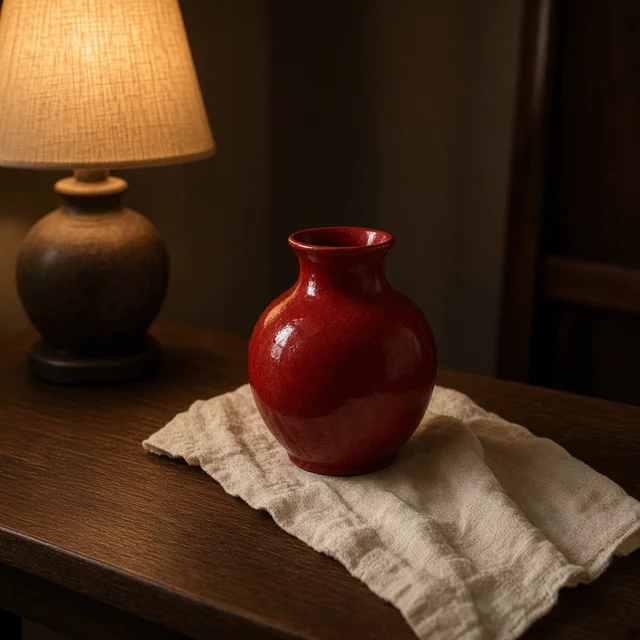
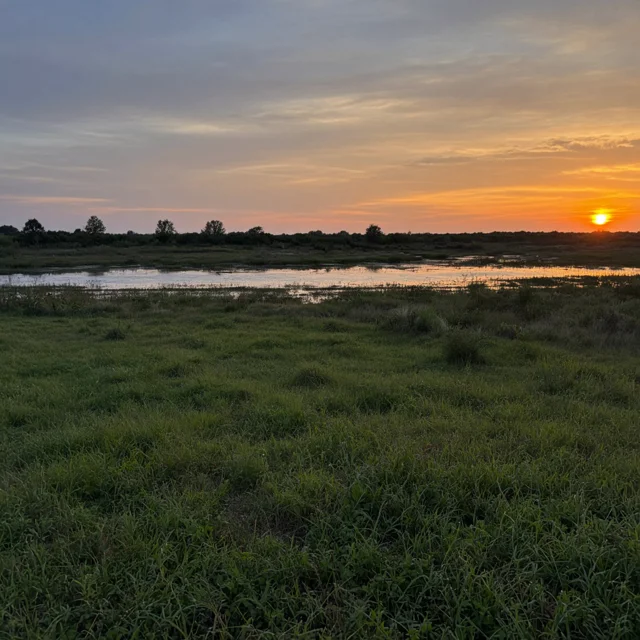
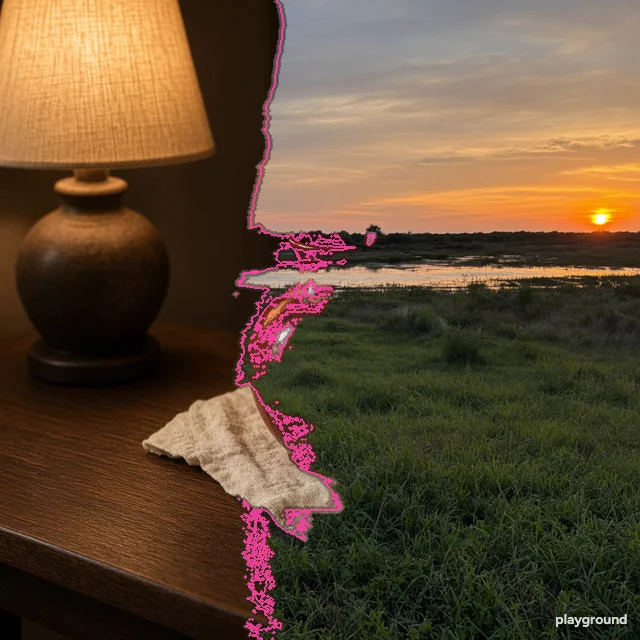
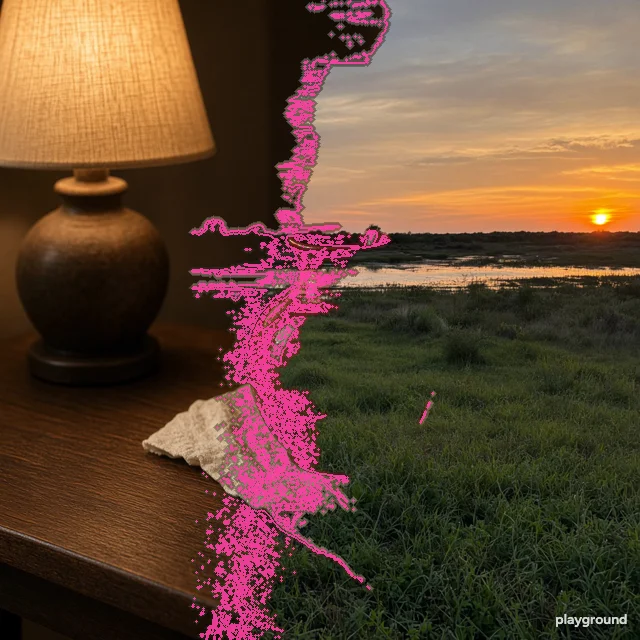
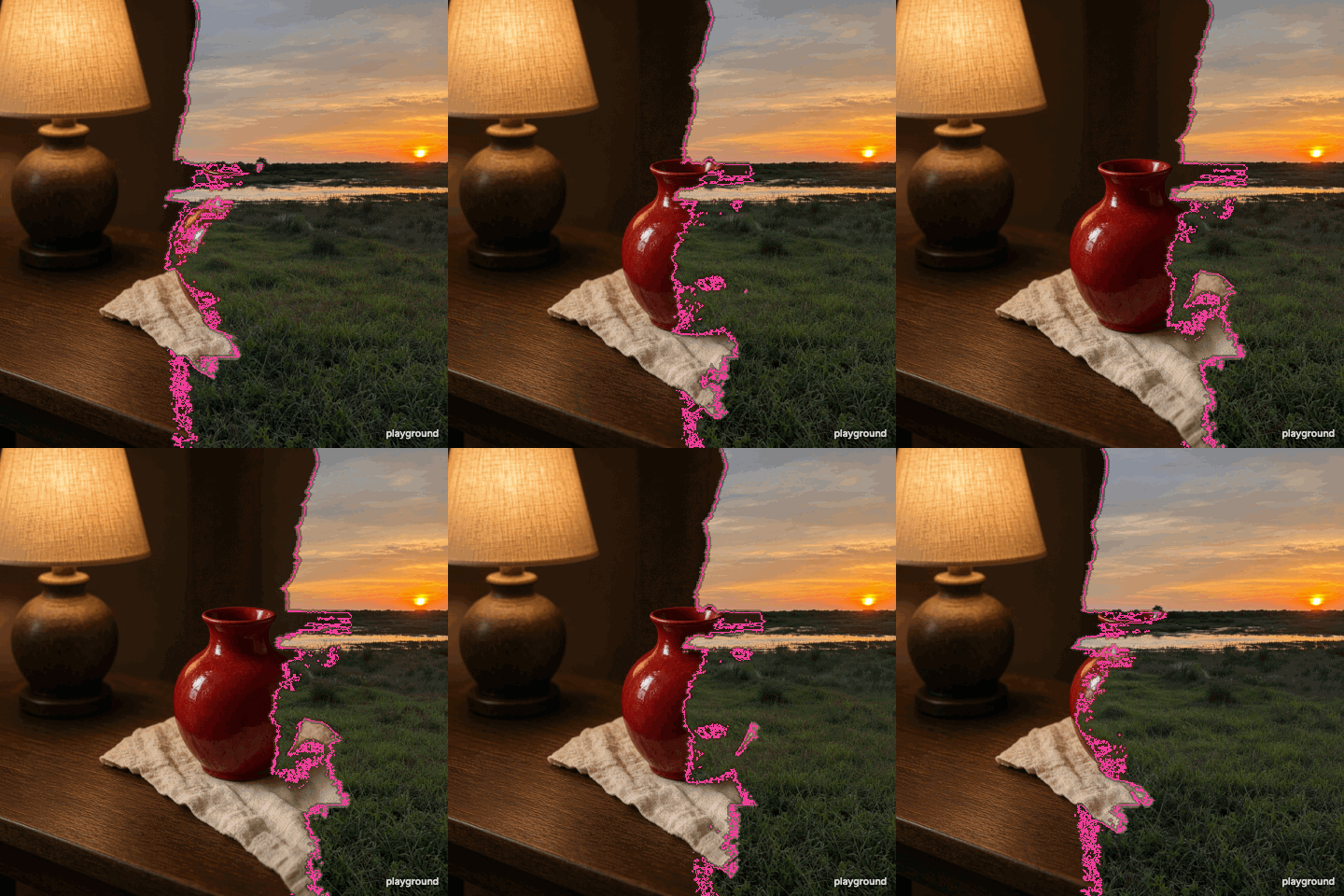
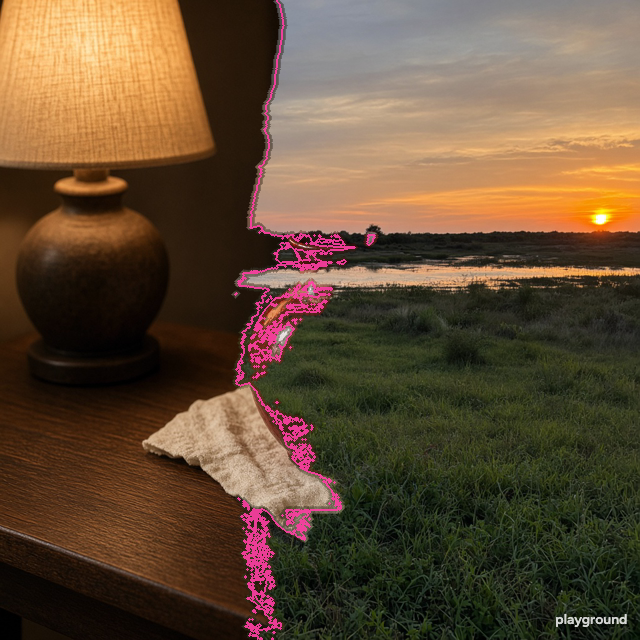
Actual studio exports from generated example images. These isolate layer counts, gestures and competition rules; they are not ordinary camera photographs.
Make it your own
Compose the pair first
Load A and B, open Start → Crosscut and compare both crops. Adjust horizontal / vertical position, zoom or mirroring so a gaze, horizon or repeated shape connects the pair. Paired study gives two regions; Tonal weave offers targeted overlay and blending. Apply after both sources have a clear purpose.
Choose image A and image B
Image A sets the frame's aspect ratio. Image B is scaled to cover that frame and may be cropped, so position important subjects with that behavior in mind. The tool does not stretch a tall challenger into a wide scene.
Compare the three rules
Brightness responds to light and dark values. Edge uses local contrast. Chaos adds a seeded irregular pattern. Use the same pair while switching rules so you can judge the boundary rather than changing several things at once.
Steer the contest
Balance shifts the advantage between the sources. Select A or B to paint influence onto the image, and use Live to watch the competition advance. Export PNG for the current territory or GIF or video for a short forward-and-back loop.
Keep a direction across photographs
Save a style in Start after choosing the treatment and ink family. Load it with another photo and refit the focal area or paired crops before applying. A style holds reusable decisions; a project backup also holds the source images, History and recorded work.
Apply to more photos replaces A while B stays fixed. Refit composition to each photo adjusts the paired crops; disable refitting only when you intend to repeat exact positions. Review each resulting relationship.
Read the boundary before adding motion
Distinct source images make the competition easier to understand. Try a warm interior against a cool scene, or an object with a strong silhouette against a more textured photograph. If both sources have similar colors and composition, a technically active boundary may be difficult to see.
The A/B score shows the share of territory owned by each side. It describes image area, not an aesthetic score or a judgment about which photograph is better. A larger percentage can still make a less useful composition if it covers the subject you wanted to retain.
A different kind of mixer
An ordinary opacity blend shows both images throughout the frame. DUEL mostly assigns each location to one source. At the contested edge it mixes nearby material to make the meeting line readable. Contact controls govern that boundary. For an overlay, Start → Tonal weave provides visibility and tonal blending; for a shared diagonal or two subjects, use Crosscut or Paired study.
DUEL is also different from an AI image generator. It uses the source pixels, local image measurements and deterministic rules; it does not invent a new scene. Reusing the same sources, parameters and battle state gives a reproducible result. Different images can naturally produce different ownership patterns under the same rule.
Export a useful comparison
Pause at a state you like and save a named version before changing the rule or sources. Standard PNG preserves the visible composition. A loop advances a private snapshot and reverses it, so edits made during export cannot enter the file. The page samples are actual product downloads using repository-owned images, not illustrations of a promised effect.
Keep image B's crop in mind when judging high-resolution output. A small source cannot contribute detail it does not contain. Use the original files for the best still output, and choose a compact loop when the goal is a quick comparison or social post.
Questions before you start
Why is part of image B missing?
A defines the output aspect ratio; B uses a cover crop within the region assigned by the selected composition. Open Start for Crosscut or Paired study, then adjust each crop; Edit also provides independent A/B zoom, horizontal and vertical position, and mirroring. A defines the output aspect ratio. Zoom creates room to pan but reduces the source area used.
Can I choose which image takes an area?
Select A or B and paint influence. That gives the chosen side a local advantage. Balance adjusts the wider composition, while the rule determines how the unpainted regions compete.
Can I export with only one image?
DUEL needs both sources. Load the second image before exporting. FLOW and TRACE can produce a complete result from a single image.
Does the GIF show my whole editing session?
No. It evolves the battle state captured when you request the export, then plays backward. It does not record later pointer gestures or include the surrounding interface.