A practical guide · FLOW
Make a photograph move with FLOW
FLOW lets you push, gather and burst the material of a photograph. Its simulation uses particles, while the visible surface stays a textured photo. You can make a subtle displacement or a stronger distortion without turning the subject into a generic field of colored dots.
Open FLOWCore tools work without an account. Image effects run in your browser.
Watch it in the studio
Silent recordings of the real playground with the sample photo. Each step is labeled with the control's name, so you can follow along in another tab.
Video unavailable. You can still read the written instructions on this page.
Steps in this clip
- Start → Photo motion
- Raise Movement
- Apply — one undoable edit
Video unavailable. You can still read the written instructions on this page.
Steps in this clip
- Open Start
- Contour study: a flowing paper sheet
- Protected drift: keep a detail still
- Ribbon study: one broad sweep
- Apply the one you like
Video unavailable. You can still read the written instructions on this page.
Steps in this clip
- Play freely
- Open History
- Branch: keep this as a named version
- Drag Replay back in time
- Release to keep that moment
- Return to any version
FLOW / Start with a composition
Coffee current.
The cup is the anchor; the diagonal movement belongs to the table and saucer. The Sunprint inks connect both areas without replacing their photographic detail.
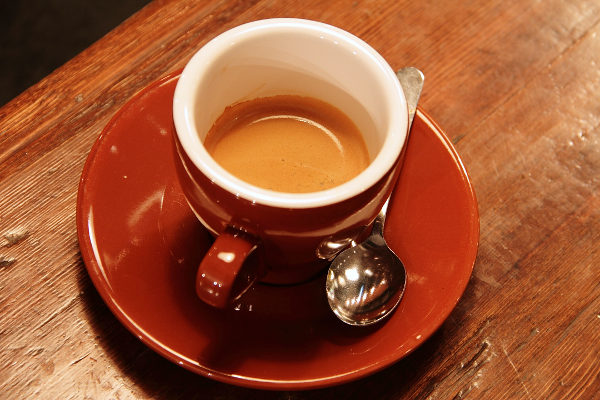
Rachel Michetti · CC0 / public domain ↗
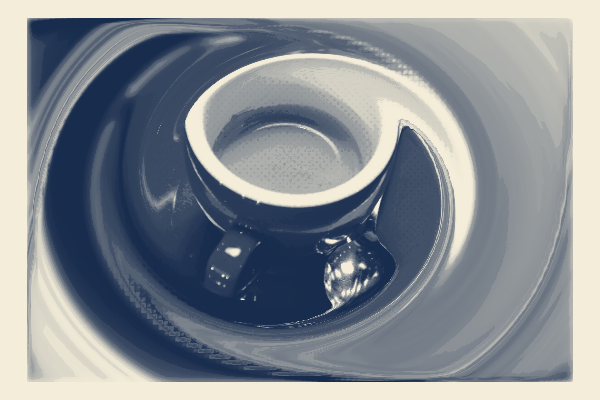
Download PNG ↓ · Short MP4 ↓
Make a decision. Compare the rim and handle with the source. They should remain recognizable while the surrounding sweep gives the image a direction. Enlarge or move the protected area if a defining edge is lost.
Try it. Open Start → Photographic current. Compare the protected cup with the flowing surround, then reverse Turn or reduce Movement. Applying Start is one undoable edit; compare the preview before applying, then keep a version in History.
For your own image, open Start → Load style and choose the downloaded file. Refit the focal area or crops, compare the preview and apply. The example uses an unmarked Pro output; the same creative controls are free.
Compare the earlier techniques
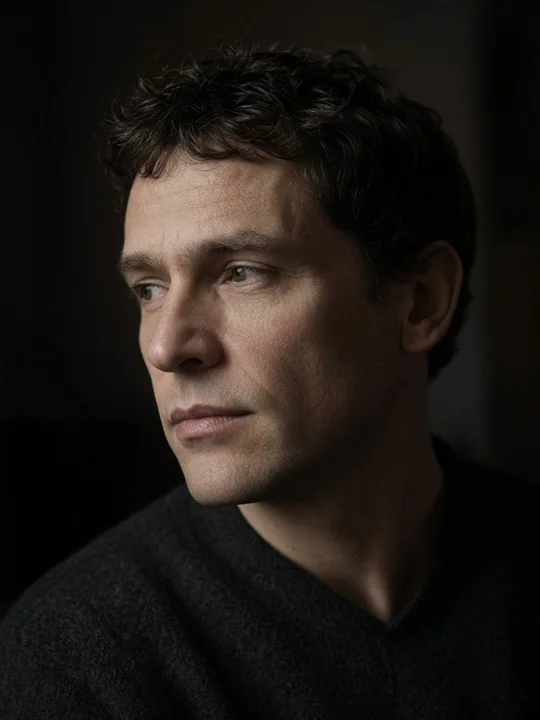
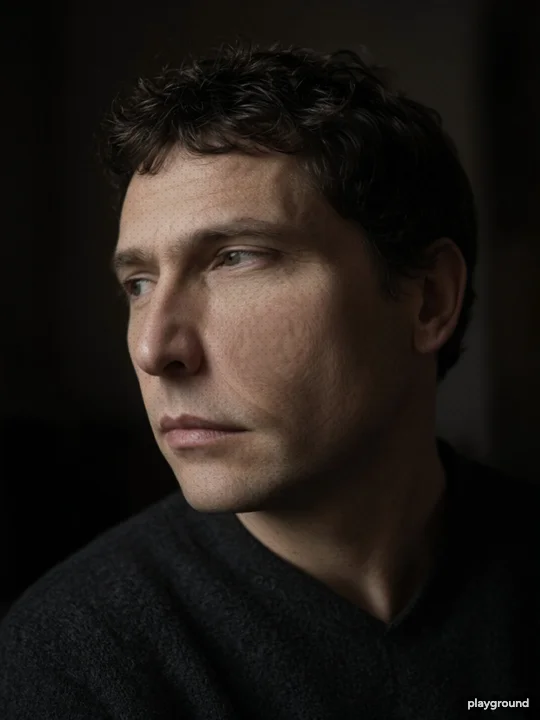
Actual studio exports from generated example images. These isolate layer counts, gestures and competition rules; they are not ordinary camera photographs.
Make it your own
Compose before sculpting
Load your photograph, open Start and choose Photographic current. Show source photo and fit the protected detail around every defining feature. Adjust Movement and Turn; compare the still and Preview short loop before Apply starting point. Undo restores the prior work.
Bring a recognizable image
Open FLOW and add a JPEG, PNG or WebP. Start with a face, object or landscape whose shape you can recognize after a small movement. The source photo stays separate from the changing simulation.
Try one tool at a time
Drag with Push to move material along a gesture. Hold Attract to gather it toward a point. Use Explode for an outward burst. Strength changes the force, while Return changes how the material comes back toward its resting pose.
Save a still or make a loop
Export PNG to keep the current shape. GIF and Short loop video generate a forward-and-back animation from the state at the moment you click. Free loops are 1.2 seconds and up to 480px, with a corner mark; Pro adds a 4-second export within the device limit.
Keep a direction across photographs
Save a style in Start after choosing the treatment and ink family. Load it with another photo and refit the focal area or paired crops before applying. A style holds reusable decisions; a project backup also holds the source images, History and recorded work.
Refit composition to each photo follows the new focal area while keeping the shared inks and movement. Review the face, label or defining edges on each result; automatic fitting does not guarantee recognition.
Make motion support the picture
A small push across a recognizable feature often reads more clearly than a large distortion across the whole frame. Compare the moved image with Original, then try a different tool on a saved version. Presets offer another starting point, but their appearance still depends on the photograph you supply.
In Settings, free FLOW controls include Deformation scale, Friction and Turbulence. Presets can also change forces such as gravity and vortex. These settings affect how the material moves; they do not select a sky, river or face to animate. FLOW does not perform AI scene understanding or generate frames from a text prompt.
What a loop records
The export captures the current material state, its settings and the chosen Look. It advances that private state at fixed steps, then plays the sequence backward to return toward its start. Changing a control while the file is being generated does not change that export. It is a short motion result, not a recording of your cursor or the entire editing session.
If the photograph is at rest and there are no active forces, there may be little motion to export. Make a visible displacement first. A GIF can be larger than a video of the same duration because of the format's palette and compression limits; WebM is another option for browser playback. If Video format offers MP4, choose it for slide decks and video editors. MP4 requires H.264 recording support.
Keep the page and the work under control
Animation generation has a Cancel control and bounded dimensions. A device with less memory receives a lower export limit. Video recording needs the tab to remain active; GIF is a useful alternative when video recording is unavailable. Save a still or project backup if you want to preserve the current result before another experiment.
The image effect runs locally. No account is required to upload a source into the workspace, try the tools or export a standard result. Account and payment features are separate. Your browser still needs to load the application, fonts and sample assets before you can use them.
Questions before you start
Does FLOW replace the photo with dots?
No. Particles drive the movement, but a textured mesh preserves the photograph's appearance. The three Looks change the finish while keeping the same interaction model.
Can I use a phone without motion permission?
Yes. Touch controls work without tilt or shake access. Device motion is an optional input, not a prerequisite for the core tools.
Are the free animations real files?
Yes. The example above is a multi-frame GIF downloaded from the product. Free FLOW and DUEL loops are 1.2 seconds; Pro offers longer loops. Your browser determines which video formats it can record.
Will a larger export add missing detail?
No. Static high-resolution export reuses the original photo's available detail. It does not create detail beyond the source, and animation has its own smaller size budget.