A practical guide · Your workspace
Work on an image in your browser
Image Playground performs its core photo effects on your device. FLOW moves a photo's material, TRACE separates tonal regions, and DUEL combines two sources through competition. You can use the core workspace without creating an account or sending a photo to a remote image-processing service.
Open the playgroundCore tools work without an account. Image effects run in your browser.
Watch it in the studio
Silent recordings of the real playground with the sample photo. Each step is labeled with the control's name, so you can follow along in another tab.
Video unavailable. You can still read the written instructions on this page.
Steps in this clip
- Open Start for a ready-made composition
- Apply the starting point
- Open Export
- Download a PNG
Video unavailable. You can still read the written instructions on this page.
Steps in this clip
- One Export sheet for every format
- PNG for layouts
- GIF or video for motion
- MP4 for slides and editors
- Project backup keeps every decision
- Send the result to TRACE
Video unavailable. You can still read the written instructions on this page.
Steps in this clip
- Tap Start
- Apply the composition
- Open Export
- Send it to TRACE
Compare the earlier techniques
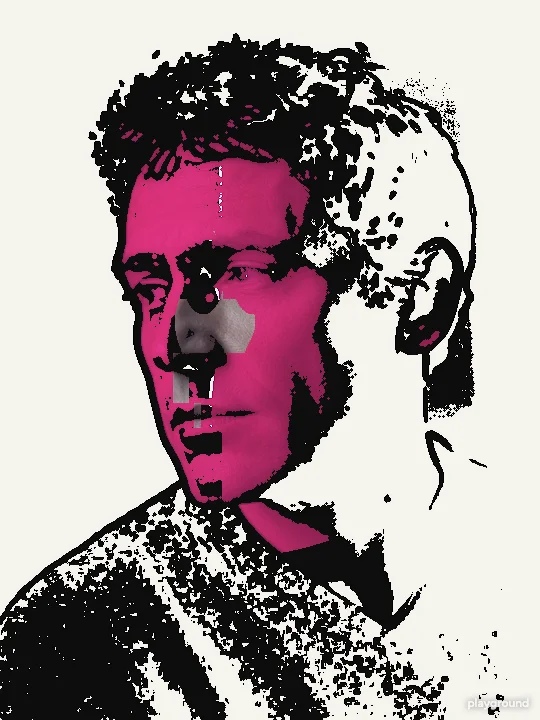
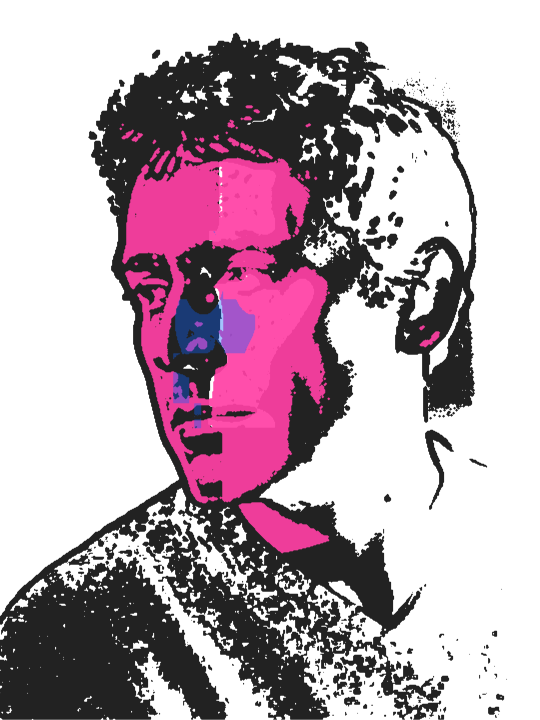
Actual studio exports from generated example images. These isolate layer counts, gestures and competition rules; they are not ordinary camera photographs.



Make it your own
Pick the kind of result
Choose FLOW for displacement and motion, TRACE for graphic layers and vectors, or DUEL for a two-image combination. Each mode uses the same workspace structure and offers an Original comparison, so you can check what changed.
Load a file and make a version
Use a JPEG, PNG or WebP. Work on the preview, save a named version before a major change, and keep the original file. Large images are constrained by device budgets so the browser can remain usable.
Export and back up
Download PNG, SVG or an available animation for the finished result. Also download a project backup when you need to reopen the sources and editing state. Keep that backup somewhere you control; browser storage alone is not an archival system.
Local processing still has a network boundary
The browser downloads the application, fonts and any sample images that you open. Account sign-in, purchase verification and payment pages can contact their respective services. Those requests are separate from the core photo-effect pipeline. A local effect should not be confused with a claim that the website makes no network requests at all.
Your own image bytes are decoded and processed in the browser for the effects described here. Export is an explicit download. A parameter-sharing link describes settings rather than silently uploading your photograph. If you send a result through another application, that application's privacy rules also apply.
Know where the work is stored
The workspace uses browser storage for local projects, source assets and versions. That storage belongs to a browser profile on a particular device. Clearing site data, using a private session, changing browsers or running out of storage can affect whether the project is available later.
A downloaded project backup is the recovery path you can keep independently of the site. It is different from a PNG: the flattened image preserves the visible result, while the backup retains editable state and referenced source files. Keep copies of your source images too, particularly before clearing browser data.
Offline and device limits
After the offline copy reports ready on the Privacy page, this browser can reopen FLOW, TRACE and DUEL without a connection. Local processing and standard downloads work from the cached app; accounts and payment services still need the network. Browser storage can be evicted, so keep a portable project backup. You can remove the offline copy in Privacy without deleting saved projects.
Preview resolution and simulation budgets depend on the device. Static exports use the original where the selected output and device budget permit. Animation has a smaller frame budget, and video recording depends on browser support. When a requested output exceeds a processing or geometry limit, use the recovery message rather than assuming that a partial file is complete.
Share deliberately
Canvas-based raster exports do not carry the input file's EXIF metadata through the rendering pipeline. The visible picture can still contain private information, so inspect it before sharing. A result card can add an original-image inset and a site label; check that both images are suitable for the intended audience. The privacy and methodology pages describe these boundaries alongside the product controls.
Questions before you start
Do I need an account to start?
No. The three core modes, standard results and local work are available without signing in. Paid features and account management use a separate commercial service boundary.
Does a saved local project appear on another device?
Do not assume that it does. Browser-local storage is device- and profile-specific. Use a project backup to transfer your work unless a confirmed cloud-sync feature explicitly reports that it has uploaded and synchronized the project.
Does deleting an account erase local pictures?
The account deletion flow does not automatically clear browser-local projects. Local files, site data and account data have separate lifecycles. Keep a backup before intentionally clearing site storage.
What should I do if saving fails?
Keep the page open and export a result or project backup. Browser quota or storage restrictions can prevent a save. A success message should only follow a completed save; retry after addressing the storage problem.