A practical guide · DUEL
An alternative to opacity blending
Use DUEL when you want two photographs to meet along an irregular, controllable boundary. It keeps recognizable portions of each source instead of making both photos uniformly transparent. That makes it useful for experimental collages, contrasting scenes and short image battles.
Open DUELCore tools work without an account. Image effects run in your browser.
Watch it in the studio
Silent recordings of the real playground with the sample photo. Each step is labeled with the control's name, so you can follow along in another tab.
Video unavailable. You can still read the written instructions on this page.
Steps in this clip
- Open Edit
- Brush for photo A
- Paint A into B’s side
- Then give B its territory
Video unavailable. You can still read the written instructions on this page.
Steps in this clip
- Add photo B
- Change the rule: what wins?
- Edges, brightness or chaos
- Balance favors one photo
- Spread lets the fight travel
Video unavailable. You can still read the written instructions on this page.
Steps in this clip
- Looks swap the whole palette
- Compose stacks finishing passes
- Add Print dots
- Add Film grain
- Move Film grain up: order changes the result
DUEL / Start with a composition
Cup meets gaze.
The cup’s round rim and the cat’s gaze create the relationship. Crosscut supplies a common diagonal and focal height; independent crops decide what each half contributes. Shared tones connect the two photographs.
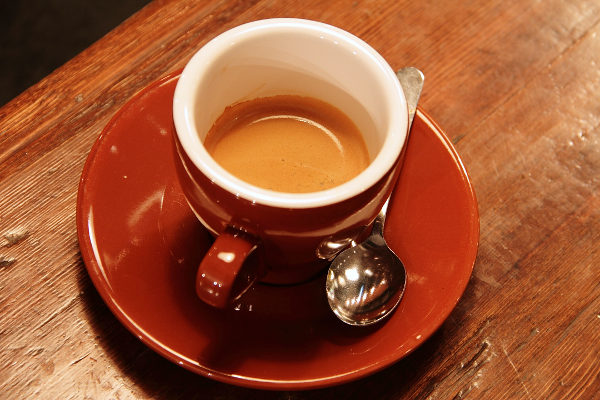
Rachel Michetti · CC0 / public domain ↗
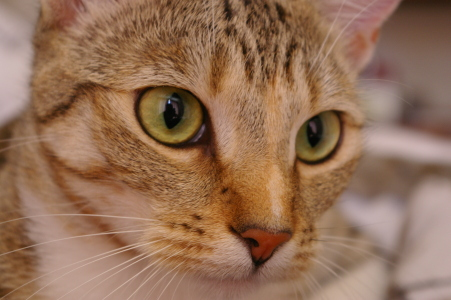
Stefan van der Walt · CC0 / public domain ↗
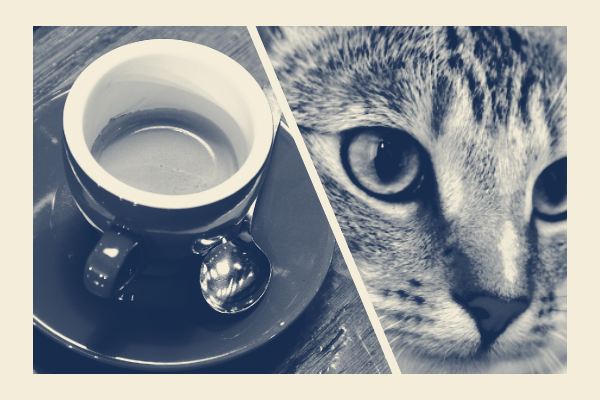
Download PNG ↓
Make a decision. Both the cup and the face should read at thumbnail size. Move or zoom A and B independently if one subject is clipped. An automatic crop cannot choose a meaningful subject pairing for you.
Try it. Open Start → Crosscut. Compare A and B, then adjust each crop so the cup and the cat’s gaze meet across the diagonal. Applying Start is one undoable edit; compare the preview before applying, then keep a version in History.
For your own image, open Start → Load style and choose the downloaded file. Refit the focal area or crops, compare the preview and apply. The example uses an unmarked Pro output; the same creative controls are free.
Compare the earlier techniques
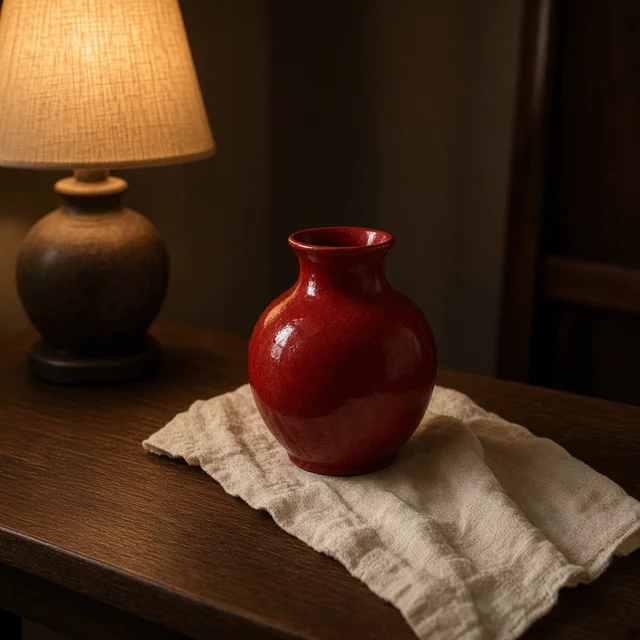
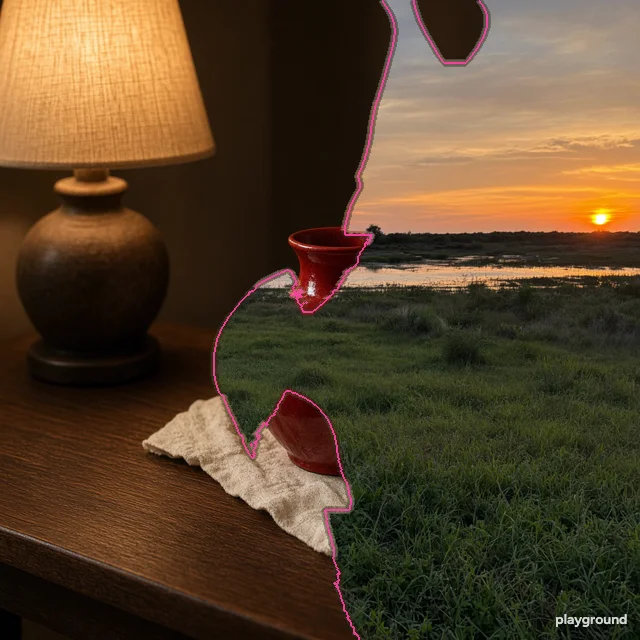
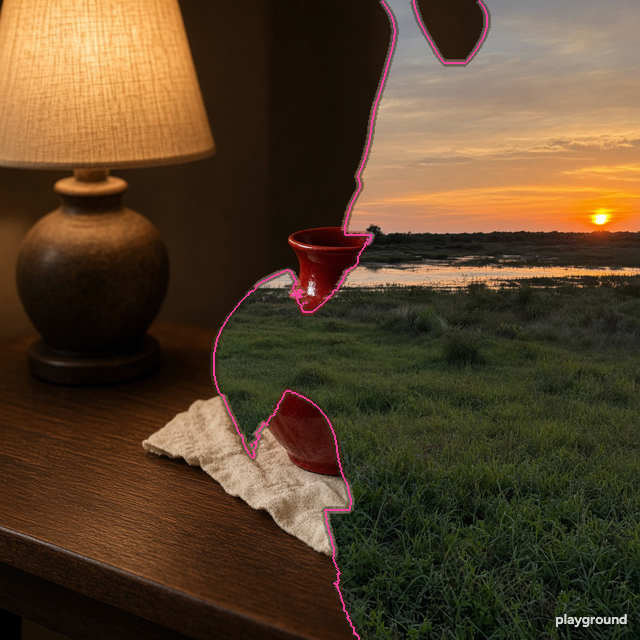
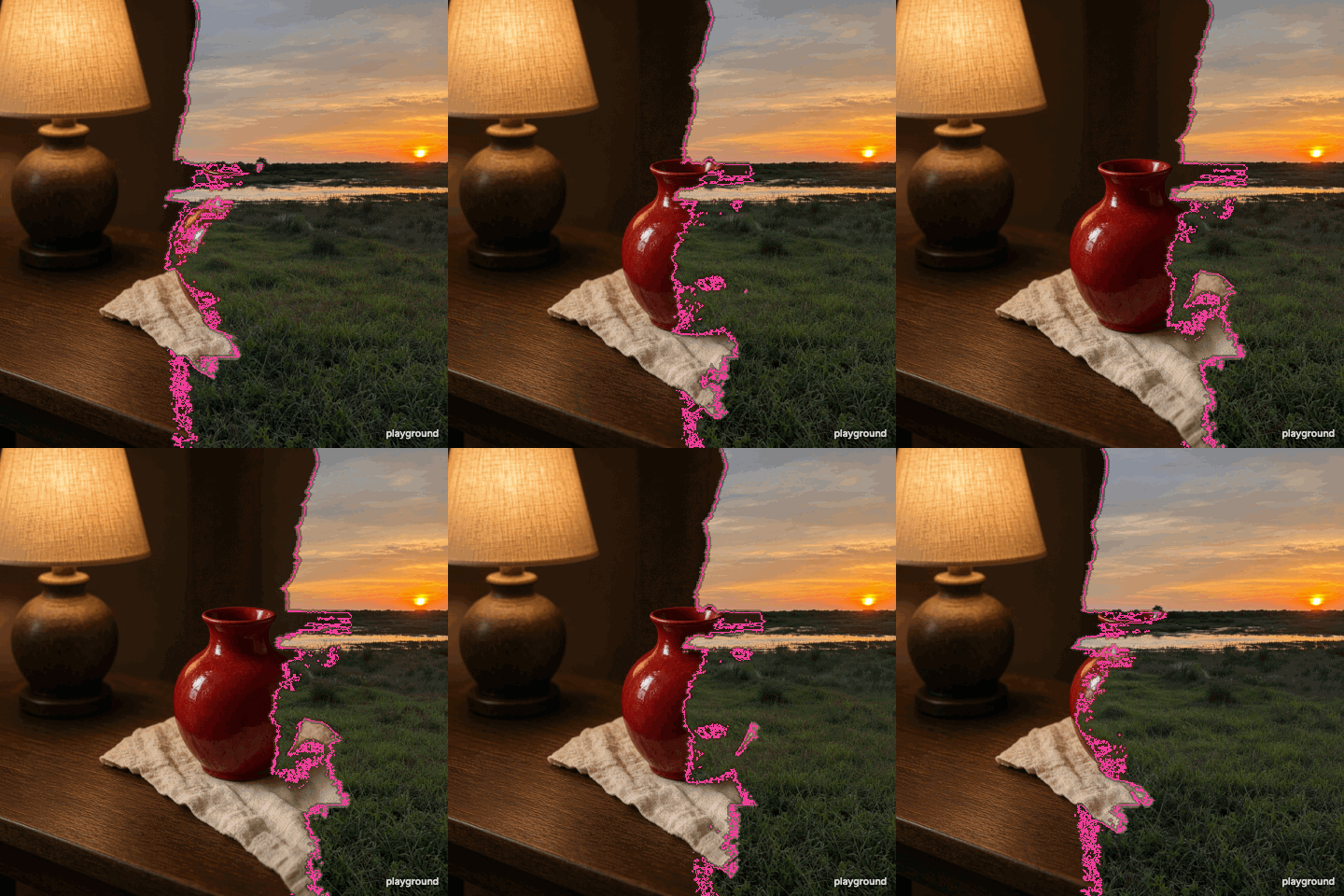
Actual studio exports from generated example images. These isolate layer counts, gestures and competition rules; they are not ordinary camera photographs.
Make it your own
Compose the pair first
Load A and B, open Start → Crosscut and compare both crops. Adjust horizontal / vertical position, zoom or mirroring so a gaze, horizon or repeated shape connects the pair. Paired study gives two regions; Tonal weave offers targeted overlay and blending. Apply after both sources have a clear purpose.
Choose a contrast that matters
Bring two sources whose difference you want people to notice: day and night, texture and object, warm and cool, or two compositions of the same subject. Similar images can work, but the contact line will be more subtle.
Set the frame and rule
Load the main composition as A; its aspect ratio defines the output. Add B, which covers the frame with a possible crop. Compare Brightness, Edge and Chaos, then adjust Balance while watching which parts of each photograph remain.
Keep the result you intended
Paint influence for either side where a subject needs more room. Use a named version before trying another direction. Export a still for a collage, or a short GIF or video loop to show the moving boundary without recording the editor.
Keep a direction across photographs
Save a style in Start after choosing the treatment and ink family. Load it with another photo and refit the focal area or paired crops before applying. A style holds reusable decisions; a project backup also holds the source images, History and recorded work.
Apply to more photos replaces A while B stays fixed. Refit composition to each photo adjusts the paired crops; disable refitting only when you intend to repeat exact positions. Review each resulting relationship.
When an opacity blend is the better choice
A conventional blend is useful when you want a double exposure, a subtle overlay or a continuous contribution from both images. Start → Tonal weave offers texture visibility, light / dark targeting and blending. Edit retains blend and contact controls; Crosscut and Paired study organise two regions first. Balance still changes the competition, so it is not a transparency percentage.
If you need exact retouching, a precise selection around hair, or a specific layer mask, use an editor that provides those tools. DUEL's brush adds influence to a competition field; it is not a pixel-perfect manual mask. The boundary remains part of the visual effect.
When DUEL fits
Choose DUEL when the meeting of two sources is the subject of the work. It can retain one scene on one side and reveal another through an uneven frontier. The three rules produce different relationships to the source brightness, local edges and a seeded irregular pattern. The preview lets you judge those relationships immediately.
No prompt or AI generation step is involved. The tool recombines existing photo material rather than creating an imagined third scene. That makes the original framing and source quality especially important: neither a missing face nor an out-of-frame object will be generated for you.
Keep frame, source and output separate
A determines the output shape. B fills it while keeping its own proportions, so a portrait challenger in a landscape frame will lose material outside the cover crop. If the crop hides the part you need, open Edit → Frame each photo. Adjust A and B independently with zoom, horizontal / vertical position and mirroring. Start → Crosscut or Paired study provides a composed first arrangement.
The rendered still is separate from the editable project. PNG is convenient for posting or further raster editing. A project backup retains the inputs and state for returning to the experiment. Short loops start with a frozen state and play forward and backward; changing the working image during encoding cannot alter the file already being prepared.
Core DUEL works without an account. Free output includes a standard PNG and a short watermarked animation. Pro adds output depth such as longer loops and available original-resolution stills. The Pro page describes the one-time Pro v1 offer and its production limits.
Questions before you start
Is this an AI image-blending service?
No. DUEL processes the supplied photos locally using image measurements and deterministic competition. It does not send them to an AI image model or synthesize new objects.
Why is there a mixed strip at the border?
The contested edge uses a local transition and a Look-specific line to show where the images meet. Choose Original edge, Clean cut or Feather in Edit to change that contact. Tonal weave is a separate overlay starting point with visibility and blending controls.
Can I make a seamless loop?
The GIF and video loop exports play a prepared sequence forward and backward without duplicating the turning points. GIF carries a repeat instruction; video repetition depends on the player or platform where you use it.
Is it suitable for confidential photographs?
The image effect is local, but you should still review the privacy page, your browser environment and any sharing destination. Downloading a file and posting it elsewhere are separate actions.